


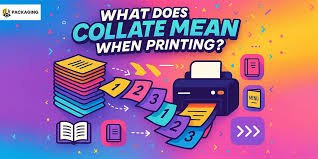
Printing should be simple, but one small checkbox, collate, has confused more people than almost any other printer setting. You see it pop up in the printer dialog, hesitate for a second, and wonder whether turning it on or off will mess up your entire print job. If you’ve ever printed multiple copies and ended up with a pile of pages in the wrong order, collate is usually the reason.
The good news is that collate printing isn’t technical or complicated. It’s just poorly explained. Once you understand what collate means when printing, you’ll know exactly when to use it, when to ignore it, and how to avoid wasting paper and time.
What Does Collate Mean When Printing?
When printing, collate refers to how pages are organized when you print multiple copies of a multi-page document.
If collate is turned on, the printer produces complete sets of your document in the correct order.
If collate is turned off, the printer groups identical pages together before moving on to the next page.
In simple terms, collated printing keeps each copy together, while uncollated printing stacks the same pages into piles.
For example, imagine you’re printing a 5-page document and you need 3 copies:
- Collated printing outputs:
Page 1–2–3–4–5, then again 1–2–3–4–5, then again 1–2–3–4–5 - Uncollated printing outputs:
Page 1–1–1, then 2–2–2, then 3–3–3, and so on
That’s the core collate printing meaning. Nothing more, nothing less.
What Does “Collated” Mean in Printing?
When people say a document is collated, they mean the pages are already arranged as finished, ready-to-use sets. Each copy is in order from the first page to the last page.
This is why collated print jobs are common for:
- Reports
- Assignments
- Presentations
- Manuals
- Meeting handouts
You can pick up a collated set and use it immediately without sorting anything by hand.
Uncollated printing, on the other hand, gives you page stacks that still need to be organized. That’s fine in some situations, but frustrating in others.
How Collate Printing Works in Real Life
Understanding how collate printing works becomes much easier with real examples.
Let’s say you’re printing a 10-page report for five people.
With collate turned on, the printer creates:
- 5 complete document sets
- Each set already in page order
- No manual sorting needed
With collate turned off, the printer creates:
- One stack of page 1 (five copies)
- One stack of page 2 (five copies)
- One stack of page 3 (five copies)
- And so on
This is why collate printing is so closely tied to printing multiple copies. If you’re only printing one copy, collate doesn’t change anything at all.
What Is Uncollated Printing?
Uncollated printing means the printer groups identical pages together instead of assembling full document sets.
It’s not wrong or broken, it’s just a different output style.
Uncollated printing makes sense when:
- You’re printing single-page documents
- Pages will be assembled later
- A finishing machine or binder will organize them afterward
- You’re running high-volume commercial print jobs
Many professional printers actually prefer uncollated output because it works better with automated finishing equipment.
For everyday home or office use, though, uncollated printing is often turned on accidentally, and that’s where confusion starts.
Collated vs Uncollated Printing: The Actual Difference
The difference between collated and uncollated printing isn’t about print quality or speed. It’s purely about page order.
Here’s how they compare in practical terms:
- Collated printing
- Produces complete document sets
- Pages are in order
- Ideal for reports and handouts
- Saves manual sorting time
- Produces complete document sets
- Uncollated printing
- Produces page stacks
- Pages are grouped by page number
- Useful for bulk printing or binding
- Requires sorting if used immediately
- Produces page stacks
This difference becomes more noticeable as page count and copy count increase.
Why Use Collate Printing?
The biggest reason to use collate printing is convenience. When collate is enabled, your printer does the organizing for you.
Collated printing benefits include:
- Faster distribution of documents
- Fewer mistakes with page order
- Cleaner, more professional output
- No need to manually assemble sets
For offices, schools, and home users, collated printing is often the default choice because it produces ready-to-use results.
When to Use Collated Printing
You should use collated printing whenever:
- You’re printing multiple copies
- The document has more than one page
- Each copy is meant for a different person
- Pages need to stay in sequence
Common examples include:
- Business reports
- School assignments
- Training materials
- Legal or financial documents
- Presentation handouts
In these cases, collate printing prevents errors and saves time.
When You Should Not Use Collate
There are also situations where collate should be turned off.
Uncollated printing works better when:
- Printing a single-page document
- Producing flyers or forms
- Printing pages that will be assembled later
- Using professional finishing equipment
This is why many printer dialogs allow you to toggle printer collate on or off depending on the job.
What Does Collate Mean on Printer Settings?
In printer settings, collate usually appears as:
- A checkbox
- A toggle switch
- A dropdown option
It may say:
- “Collate”
- “Collated”
- “Sort”
- “Print collated sets”
Despite the wording, the function is the same. The printer is asking whether you want complete sets or page stacks.
Some printers also group collate under advanced settings, which makes it easier to miss.
How to Collate When Printing
To collate when printing, you simply need to enable the collate option before hitting print.
Most print dialogs follow the same pattern:
- Open the print menu
- Select the number of copies
- Look for “Collate” or “Collated”
- Make sure it’s turned on
- Print
If collate is unchecked, your output will be uncollated.
What Does Collate Mean on Different Printer Brands?
Whether you’re using HP, Canon, Epson, or another brand, collate printing works the same way. The only difference is where the option appears.
Some printers place the collate checkbox:
- In the main print dialog
- Under “Layout” or “Finishing”
- Inside advanced printer properties
The printer collate function meaning never changes, only the interface does.
Collate vs Sort Printing Setting
Some printers use the word sort instead of collate. This causes confusion, but in most consumer printers, collate and sort mean the same thing.
Both settings control:
- Page order
- Grouping of printed copies
- Whether output is in sets or stacks
If you see “sort printing setting,” it’s usually another way of saying collate.
Collate vs Duplex Printing
Collate printing is often confused with duplex printing, but they solve different problems.
- Collate controls page order
- Duplex controls one-sided vs double-sided printing
You can use them together or separately. Turning on duplex does not automatically collate your pages, and collating does not make printing double-sided.
What Happens If You Don’t Collate?
If you don’t collate when printing a multi-page document with multiple copies, the printer outputs page stacks instead of sets.
This means:
- You’ll need to sort pages manually
- Page order mistakes are more likely
- Printing feels slower and messier
For short jobs, it’s just a minor annoyance. For longer documents, it can be a real headache.
Do I Need to Collate When Printing Reports?
When printing reports, collate is usually the setting you want, even if you don’t consciously realize it. Reports are typically multi-page documents, and each copy is meant to be read as a complete unit. That’s exactly what collated printing is designed for.
If you’re printing reports for:
- Meetings
- Class submissions
- Managers or clients
- Record keeping
collated printing ensures each report comes out in the correct page order from start to finish. You can pick up a single stack and hand it over without rearranging anything.
If collate is turned off, you’ll end up with piles of the same pages. For a short report, this might only be mildly annoying. For a long report, it quickly turns into a time-consuming sorting job.
Should I Collate My Print Job?
Whether you should collate your print job depends on how the printed pages will be used, not on the printer itself.
You should collate your print job if:
- The document has multiple pages
- You’re printing more than one copy
- Each copy is for a different person
- You want the output ready to use immediately
You probably don’t need to collate if:
- You’re printing just one copy
- The document is only one page
- Pages will be assembled or bound later
A good rule of thumb is simple:
If you’d be annoyed having to manually put pages in order, turn collate on.
Printer Collate Meaning for Multi-Page Documents
Collate becomes important only when two conditions are met:
- The document has more than one page
- You’re printing more than one copy
For single-page documents, collate makes no visible difference. That’s why many people don’t notice this setting until they print something longer.
For multi-page documents, collate printing controls whether the printer:
- Finishes one complete document before starting the next, or
- Prints all copies of page one, then page two, then page three
This is why collate printing is often misunderstood, it’s invisible until it suddenly matters.
How Does Collate Printing Work Behind the Scenes?
Inside the printer, collated print jobs are handled page by page. The printer’s memory temporarily stores the page order so it can output full document sets in sequence.
This is why:
- Very old printers struggled with collated printing
- Some printers slow down slightly when collate is enabled
- Large documents may take longer to process
Modern printers handle collate printing easily, but if a printer runs out of memory, it may default to uncollated output or pause between sets.
Collated Print Jobs Meaning in Office Environments
In offices, collated print jobs are the norm. Most workplace documents, memos, proposals, training materials, are meant to be distributed as complete packets.
Office printers are usually configured so that:
- Collate is enabled by default
- Multiple copies print as ready-to-use sets
- Employees don’t need to manually organize pages
This reduces mistakes, speeds up workflows, and avoids awkward moments where someone receives a report with missing or out-of-order pages.
Printer Collate Option Purpose Explained Simply
The purpose of the printer collate option is not technical, it’s practical.
It exists to answer one question:
Do you want finished document sets, or do you want page stacks?
That’s it.
Everything else, memory usage, speed, settings menus, is secondary. Once you understand that collate controls organization, not printing quality, it becomes one of the easiest printer settings to use correctly.
Collate Printing Examples You’ll Recognize Instantly
Here are a few everyday examples where collate makes a big difference:
- Printing five copies of a résumé
→ Collated printing gives you five complete résumés - Printing training manuals for new employees
→ Collated printing produces ready-to-hand-out manuals - Printing worksheets for a classroom
→ Collated printing avoids page mix-ups
In each case, collated output means less handling and fewer errors.
What Does Collate Mean in Printing PDFs?
When printing PDFs, collate works the same way it does for Word documents or spreadsheets. The difference is that PDF print dialogs sometimes hide the collate checkbox under advanced settings.
If you’re printing a multi-page PDF and multiple copies, always check:
- The PDF viewer’s print settings
- The printer’s own settings
Some PDF programs allow both to control collate, and mismatched settings can override each other.
How to Turn Off Collate on a Printer
Turning off collate is just as easy as turning it on. In most print dialogs:
- Uncheck the “Collate” box
- Select “Uncollated” from the dropdown
- Disable “Sort” if that’s the label used
Turning collate off is useful when:
- Printing bulk copies of a single page
- Preparing documents for binding
- Using professional finishing services
Knowing how to toggle collate gives you full control over your print output.
Printer Collate Function Meaning vs Group Printing
Some printers and print services refer to group printing instead of collate. While the terms sound different, they usually point to the same idea—how pages are grouped.
- Grouped or uncollated printing = page stacks
- Collated printing = complete sets
If you see “group” in your printer settings, it’s worth double-checking the preview to confirm how pages will be ordered.
Complete Sets vs Page Stacks Printing
This is the clearest way to remember collate:
- Complete sets → Collated printing
- Page stacks → Uncollated printing
If you imagine someone picking up your printed pages:
- Will they receive a full document?
- Or just a pile of the same page?
That mental picture makes the collate decision obvious almost every time.
Why Collate Printing Sometimes Slows Down Jobs
Some users notice that collated printing takes longer. That’s not a bug, it’s expected behavior.
Collated printing may:
- Pause briefly between sets
- Process pages more carefully
- Use printer memory to maintain order
Uncollated printing is often faster for very large jobs, which is why commercial printers sometimes prefer it.
Common Printing Mistakes Caused by Collate Settings
Many printing problems aren’t printer problems at all, they’re collate misunderstandings.
Common issues include:
- Pages printed “out of order”
- Extra time spent sorting documents
- Reprinting entire jobs unnecessarily
Simply checking the collate setting before printing can prevent all of these.
When Collate Doesn’t Matter at All
There are times when collate truly makes no difference:
- Printing one page
- Printing one copy
- Printing drafts for yourself
In those cases, the collate checkbox can safely be ignored.
